






















A professional workspace does more than look polished in photographs. It supports concentration, protects physical comfort, and makes daily tasks easier to manage. Creating one requires more than buying attractive furniture. It involves practical choices about lighting, posture, storage, technology, and personal routines.
In my experience, a clear desk can reduce small distractions. A monitor placed at eye level may also ease neck tension during long work sessions. Natural light helps, but direct glare can make screens difficult to read. These details often matter more than expensive decorations. They show how design should serve the person using the space.
Comfort matters greatly.
The following ten tips explore simple improvements for home offices and professional environments. They consider cable control, ergonomic seating, organized documents, reliable equipment, and background noise. They also recognize different work styles, budgets, and accessibility needs. A workspace should feel intentional, not artificial. My own setups have sometimes looked organized while remaining inefficient, which is an easy mistake to overlook. A beautiful desk cannot fix unclear priorities or constant interruptions.
The goal is steady performance, not perfection. With thoughtful adjustments, even a small corner can become a dependable professional workspace. Each suggestion combines practical experience with widely accepted workplace principles, while leaving room for personal reflection and future changes.
A professional workspace should begin with a clear purpose. Decide whether it supports focused work, client meetings, creative tasks, or team coordination.
The 2023 Global Workplace Survey, covering more than 10,000 employees, found that only 43% considered their workplace effective for individual work. This suggests that attractive furniture cannot replace thoughtful planning.
Map the room before buying anything. Place the desk near natural light, but avoid screen glare. Create a quiet zone with a comfortable chair and limited visual movement. Add a collaboration zone with a small table, writable surface, and movable seats. Keep phone calls away from deep-focus areas. Even a narrow shelf can separate functions. It works surprisingly well.
I once placed a printer beside a concentration desk. Bad decision. Its noise interrupted every writing session. A facilities management report published in 2024 found that employees often need spaces supporting concentration, collaboration, and recovery within the same workday. Use floor markings, lighting changes, or rugs to make each zone understandable. Leave clear walking paths. Keep frequently used tools within one arm’s reach. Recheck the layout after one week, because real behavior often exposes flaws that planning misses.
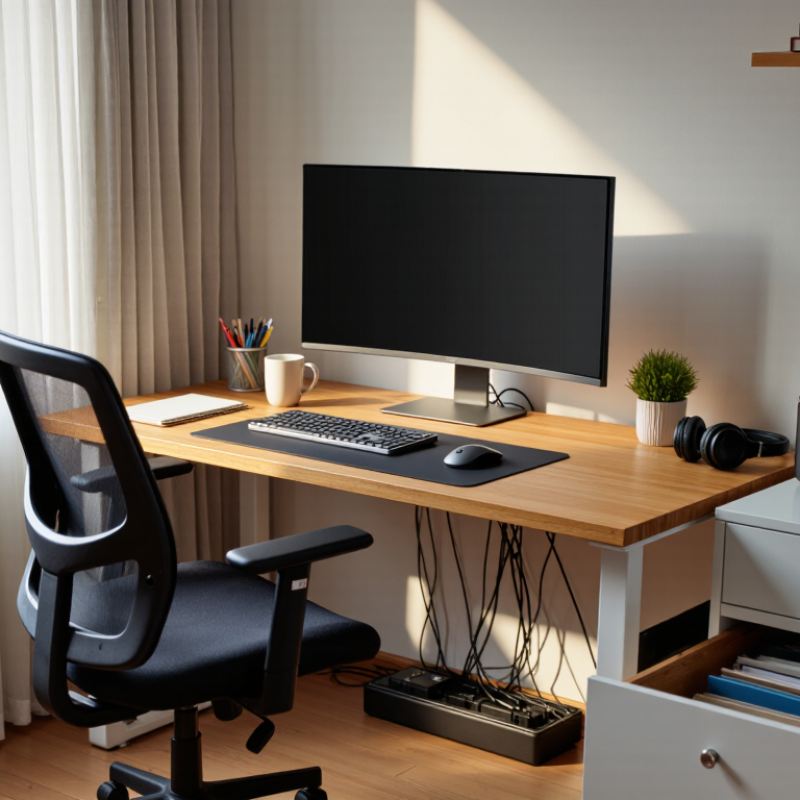
Select ergonomic furniture that supports your body instead of forcing it into one position. A desk should provide enough depth for your monitor, keyboard, and forearms. Keep your elbows close to your sides, bent near 90 degrees. Your feet should rest flat on the floor, or on a stable footrest. Small adjustments matter.
Set the monitor directly in front of you. Its top edge should sit near eye level, so your neck stays relaxed. Place the screen about an arm’s length away, then adjust it for clear reading. A chair with adjustable height, lumbar support, and a firm seat can reduce pressure during long tasks. I prefer changing positions regularly rather than trusting one perfect setting. There is no perfect setting.
Arrange frequently used items within easy reach. Keep the keyboard close, the mouse beside it, and documents on a stand near the screen. Leave space behind the chair for safe movement. Good lighting should fall from the side, not directly onto the monitor. I once raised my screen too high and developed shoulder tension, despite following general ergonomic advice. That mistake reminded me to test each adjustment slowly. Comfort is personal, but pain is a warning. If discomfort continues, an occupational health professional can assess the setup and identify less obvious problems.
A professional workspace begins with light that supports attention, not glare. ISO 8995-1 recommends about 500 lux for reading, writing, and computer tasks. Place the desk beside a window, but keep the monitor perpendicular to it. This reduces reflections across the screen. Use adjustable lamps for cloudy afternoons. My own mistake was treating brightness as quality. Excessive brightness can create tired eyes and harsh shadows.
Ventilation deserves equal attention. The U.S. Environmental Protection Agency reports that people spend roughly 90% of their time indoors. A Harvard healthy-building study across ten cities found that better ventilation was linked with higher cognitive performance. Keep air moving without creating a cold draft. Openable windows help, but they are not a complete ventilation strategy. Check filters, vents, and carbon dioxide readings regularly. Numbers reveal problems that a comfortable room can hide.
Visual clarity comes from order and contrast. Keep frequently used tools within arm’s reach, and hide loose cables below the desk. Use a matte screen, readable text, and a background that is not visually busy. The International Organization for Standardization recommends balanced illumination, not simply maximum brightness. I still leave too many objects on my desk. That clutter slows decisions. Reassess the layout after a full workday, when fatigue exposes what looked acceptable in the morning.
| No. | Workspace Tip | Practical Action | Recommended Target or Data | Professional Benefit |
|---|---|---|---|---|
| 1 | Provide adequate task lighting | Use evenly distributed ambient lighting and add adjustable task lighting for reading, writing, and screen-based work. | About 300–500 lux for general office tasks | Reduces visual strain and supports accurate document and screen work. |
| 2 | Control screen glare | Place monitors at right angles to windows where possible, use blinds or shades, and avoid bright light sources directly behind the screen. | Keep windows and bright lamps outside the direct reflection path | Improves screen readability and reduces squinting and eye discomfort. |
| 3 | Use high-quality light sources | Select lighting with good color rendering and a comfortable, consistent color appearance. | Color Rendering Index (CRI) of 80 or higher; 3,000–4,000 K is commonly suitable for offices | Helps colors, printed materials, and faces appear more natural and clear. |
| 4 | Maximize useful daylight | Keep windows clear, position desks to receive side light, and combine daylight with controllable electric lighting. | Use adjustable blinds to manage direct sun and excessive brightness | Creates a more comfortable visual environment while limiting glare and heat gain. |
| 5 | Maintain fresh indoor air | Keep air vents unobstructed, service ventilation equipment regularly, and provide outdoor-air ventilation appropriate to occupancy. | A commonly used office design reference is about 10 L/s of outdoor air per person, subject to local code | Supports comfort and helps reduce the buildup of indoor pollutants. |
| 6 | Monitor carbon dioxide levels | Use a calibrated indoor air-quality monitor as an indicator of ventilation performance rather than as a complete air-quality test. | Aim to keep indoor CO2 below approximately 1,000 ppm where practical | Provides an early signal that occupancy or ventilation conditions may need attention. |
| 7 | Keep the visual field organized | Group frequently used items, route cables neatly, and remove unnecessary objects from the desk and surrounding sightlines. | Keep essential tools within arm’s reach and reserve clear space for active work | Improves visual clarity, reduces distractions, and supports efficient task switching. |
| 8 | Set an ergonomic monitor position | Place the main monitor directly in front of the user and adjust the height so the top of the screen is near eye level. | Viewing distance commonly falls around 50–70 cm, depending on screen size and text scaling | Encourages a neutral neck position and makes text easier to read. |
| 9 | Manage background noise | Separate focused work areas from high-traffic zones and use sound-absorbing surfaces where appropriate. | A quiet office environment is often designed around roughly 35–45 dBA, depending on the activity | Supports concentration, conversations, and professional virtual meetings. |
| 10 | Review conditions regularly | Check illuminance, glare, temperature, humidity, ventilation indicators, and workstation layout after changes in occupancy or furniture. | Review conditions at least seasonally and after major layout or equipment changes | Helps maintain consistent comfort, visibility, and workspace performance over time. |
Start by measuring your desk and leaving clear space for writing. Create separate zones for equipment, documents, and daily supplies. Keep frequently used tools within arm’s reach. Keep it visible. Label charging cables and store them in one small container. Check equipment each morning for damage, low power, or missing parts. A simple checklist prevents avoidable interruptions.
Give every document a clear name, date, and project location. Separate active files from completed records, using labeled folders or drawers. Store sensitive papers away from visitors and unnecessary access. Keep a backup of essential digital documents in a secure location. Labels save time. Avoid keeping duplicate files without a reason. I once created too many folders, and finding one contract became slower. The lesson was uncomfortable but useful: organization must remain practical.
Count supplies weekly, including paper, pens, envelopes, and cleaning materials. Set a minimum quantity for each essential item, then restock before reaching it. Use transparent containers when possible, so shortages become obvious. Keep heavier equipment on stable, lower shelves to reduce accidents. Arrange cables away from walkways. Reserve five minutes before leaving to return items to their assigned places. A weekly reset can reveal clutter, but it may also expose a system that needs redesigning.
A professional workspace should feel orderly, not sterile. Keep the desk clear, but leave daily tools within reach. A 2024 global workplace report found that only 23% of employees are engaged. The physical environment cannot solve every problem, but it can reduce avoidable friction. Wipe the keyboard, empty the bin, and remove cables from walking paths. Small details signal care.
Tip: Create one visible standard. Store documents in matching folders, use consistent file names, and keep shared surfaces nearly empty. A workplace dataset covering more than one million employee responses links better workplace functionality with stronger employee experiences. These findings support a practical point: consistency helps people work with less searching and interruption. It is not glamorous.
Tip: Design for real behavior, not an imagined perfect routine. Place a tray beside the entrance for keys, access cards, and loose receipts. Keep a small cloth near the monitor. Natural light helps, but glare can make screens uncomfortable, so adjust blinds during afternoon work. Measure what changes. A clean desk may still fail if the chair causes back strain.
I still leave notes beside my laptop. That is imperfect. The goal is controlled use, not visual perfection. Review the workspace weekly, and ask whether each item supports concentration, communication, or comfort. The 2024 workplace research also highlights the importance of employee experience, so invite colleagues to report blocked walkways, poor lighting, or missing supplies. Their feedback may challenge your assumptions. Make one correction at a time.
Maintain a clean, consistent, and professional work environment by aligning your workspace with practical ergonomic and environmental targets.
The chart shows the midpoint of commonly recommended workspace ranges: 300–500 lux for office lighting, 30–60% relative humidity, 20–40 inches for screen viewing distance, and approximately 20–24°C for general indoor comfort. The 20–20–20 rule encourages looking at an object 20 feet away for 20 seconds every 20 minutes.
Reference guidance: occupational computer-workstation guidance, office lighting guidance, and thermal comfort guidance.


Paul Downs Cabinetmakers
401 E. 4th St. Bridgeport, PA 19405