How to Design an Ergonomic Workspace for Better Productivity?
An ergonomic workspace design is not simply a polished desk with an expensive chair. It is a practical system that supports movement, focus, comfort, and safer work habits. The International Labour Organization and World Health Organization estimated that work-related risks caused 1.9 million deaths globally in 2016. Their findings also show why workplace health deserves more than cosmetic improvements.
The problem is closer than it appears. EU-OSHA reported that roughly three in five workers in Europe experienced work-related musculoskeletal complaints. A monitor positioned slightly too low can pull the head forward. A desk that is too high can lift the shoulders for hours. Small mismatches accumulate. Sometimes, the chair is not the main problem.
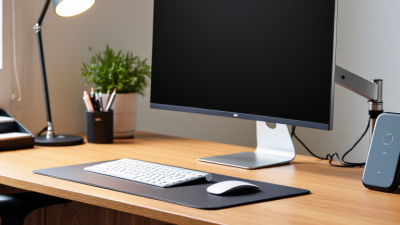
Alan Hedge, a respected workplace ergonomics researcher and former Cornell University professor, often said, “The best posture is the next posture.” This principle changes the design conversation. Instead of forcing one ideal position, effective workspaces allow frequent, easy adjustments. A sit-stand desk, a movable monitor arm, and a keyboard close to the body can create meaningful flexibility. However, equipment alone cannot repair poor routines. I have seen well-designed offices remain uncomfortable because workers rarely adjust them. That assumption deserves scrutiny.
This guide explores ergonomic workspace design through evidence, practical measurements, and real workplace constraints. It considers desk height, screen distance, lighting, movement, and personal preferences. The goal is not perfection. It is a workspace that quietly reduces strain while making productive behavior easier. Small changes matter. Reliable design begins with observation, not guesswork.
Defining Ergonomic Workspace Principles and Productivity Goals
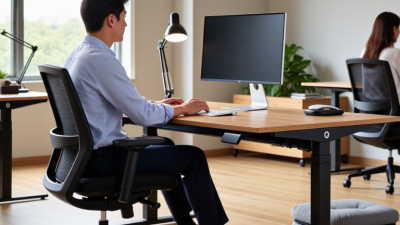
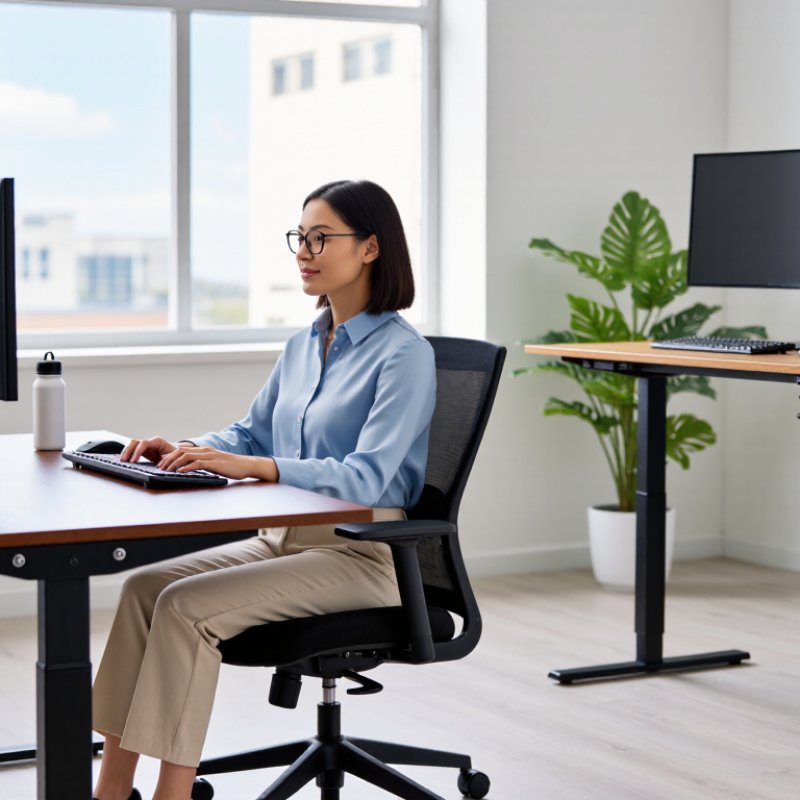
An ergonomic workspace begins with clear principles, not expensive furniture. The body should stay supported, relaxed, and able to move. Keep both feet flat on the floor, with knees near hip level. Place the screen about an arm’s length away, with its top close to eye height. Your elbows should rest near your sides, forming a comfortable angle. These details reflect guidance commonly used by occupational health professionals.
Productivity goals must be specific and observable. A useful goal might be completing two focused work blocks before lunch. Another could be reducing shoulder discomfort during a six-hour workday. Track these results for one week. Note your energy, errors, breaks, and completed tasks. The numbers may reveal an uncomfortable truth: a tidy desk does not always support effective work.
I once raised my screen too high because it looked more organized. My neck felt worse by afternoon. That mistake changed my setup. Now I adjust the screen after sitting naturally, rather than copying a fixed measurement.
Set a timer to stand, stretch, or look across the room every thirty minutes. Short movement breaks matter. Still, strict reminders can interrupt deep work. Test different intervals, then keep the rhythm that protects comfort without damaging concentration. A small notebook beside the keyboard can record these adjustments and expose patterns that memory often misses.
Assessing Your Space, Work Habits, and Physical Requirements
How to Design an Ergonomic Workspace for Better Productivity?
Assess your space before buying anything. Measure the desk height, chair depth, and distance to the screen. Notice where daylight falls during your busiest hours. Glare can cause squinting, while dim corners encourage poor posture. Keep frequently used tools within easy reach. A clear walking path also reduces awkward twisting.
Your work habits matter as much as your furniture. Track when you lean forward, cross your legs, or stop moving. I once blamed my chair for shoulder tension, but my habit of raising one shoulder caused much of it. My first setup looked tidy, yet the keyboard sat too far away. I was wrong about what comfort required. Place the screen near eye level, keep it about an arm’s length away, and let your elbows rest close to your body. Keep both feet supported when possible. Small adjustments count.
Physical requirements should guide every decision. A shorter user may need a footrest, while someone with long legs may need more knee space. If you use a laptop, raise the screen and add a separate keyboard. Change positions during the day. Stand briefly, stretch gently, or walk while reviewing notes. Comfort should not mean staying still. Persistent pain, numbness, or weakness deserves professional assessment, not another adjustment based on guesswork.
Choosing and Positioning Essential Furniture and Equipment
How to Design an Ergonomic Workspace for Better Productivity?
Choosing furniture carefully can reduce strain and make focused work feel easier.
I once used a beautiful desk that was too high, leaving my shoulders tense by lunchtime. A desk should allow relaxed shoulders, level forearms, and enough room for your legs. If possible, choose adjustable height rather than relying on a fixed standard. Small changes matter.
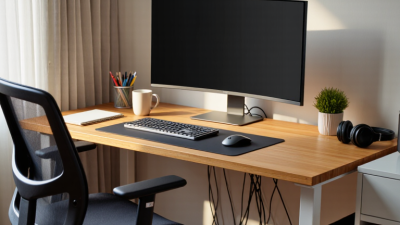
Your chair should support your lower back without forcing your spine into one rigid position. Keep both feet flat, or use a stable footrest when the seat feels too high. Position the monitor directly in front of you, about an arm’s length away. Its upper edge should sit near eye level, though personal comfort may require adjustment. Place the keyboard and mouse close enough to prevent reaching. A document holder can reduce repeated neck movement when reading from paper.
Lighting deserves equal attention.
Put the main light beside or behind the screen, not directly above it. This helps limit glare and squinting. Keep frequently used equipment within easy reach, while storing rarely used items elsewhere. I still catch myself leaning toward the screen during demanding tasks. That habit shows the setup is not perfect. Short movement breaks, even beside the desk, remain necessary. A practical workspace supports better posture, but it cannot replace awareness.
Optimizing Lighting, Sound, Temperature, and Digital Layout
An ergonomic workspace begins with conditions that support attention, not just posture. Place the desk near natural light, but keep the monitor perpendicular to the window. This reduces glare and protects your eyes from constant brightness changes. Use a soft desk lamp for cloudy afternoons. Avoid placing it behind the screen. The light should reach your notes without shining into your eyes.
Your digital layout also affects physical comfort. Keep frequently used tools within one or two clicks. Group related files and reduce unnecessary notifications. A clean desktop lowers visual noise. I prefer a larger text size and strong contrast, especially during long editing sessions. My first setup looked efficient, but constant window switching increased fatigue. I still revise it when my tasks change.
Sound and temperature deserve equal attention. Soft background noise can hide sudden conversations, while complete silence helps some people work deeply. Test both for several days. A small fan may improve airflow, but direct drafts can stiffen your neck. Aim for a comfortably cool room and adjust clothing before changing the thermostat repeatedly. Keep a water bottle nearby. It is easy to mistake mild dehydration for tiredness.
Measure results honestly. Note your focus, eye strain, and tension after two-hour work periods. One adjustment may help one person and distract another. That is normal. An ergonomic workspace is not a perfect photograph; it is a practical environment that responds to real work.
Maintaining Healthy Work Routines and Evaluating Improvements
How to Design an Ergonomic Workspace for Better Productivity?
A healthy workspace depends on daily habits, not furniture alone. Keep your screen near eye level, with your neck relaxed and shoulders lowered. Place both feet firmly on the floor. Your elbows should stay close to your body, forming a comfortable angle. These small adjustments reduce unnecessary strain during long tasks.
Healthy routines need regular movement. I stand, stretch, or walk for a few minutes every hour. A timer helps, although I sometimes ignore it during difficult work. That failure is useful feedback. I now record discomfort, energy, and focus at midday and late afternoon. After one week, I compare the notes and adjust one factor, such as chair height or break timing. This simple process is more reliable than guessing.
Tips: Change one variable at a time. Keep a short weekly record. Notice headaches, wrist tension, and tired eyes. If discomfort continues, consult a qualified healthcare professional. Do not force a posture that feels painful. Productivity should not depend on ignoring physical warning signs. Test your setup during real work, not only during a quick adjustment. Your best arrangement may change as your tasks, schedule, or body changes.